Can Google Translate a Scanned PDF? (What Actually Works)
We dropped a scanned PDF into Google Translate's document tab and it refused outright. Here's why — and the workflow that actually translates a scan.
If you've tried to translate a scanned document with Google Translate and hit a wall, you're not imagining it. We uploaded a scanned PDF (a Spanish vehicle sales contract) to Google Translate's document tab — the "Documents" upload on translate.google.com — and it refused outright. No translated file, no OCR, nothing to download. Just a small message in the corner:
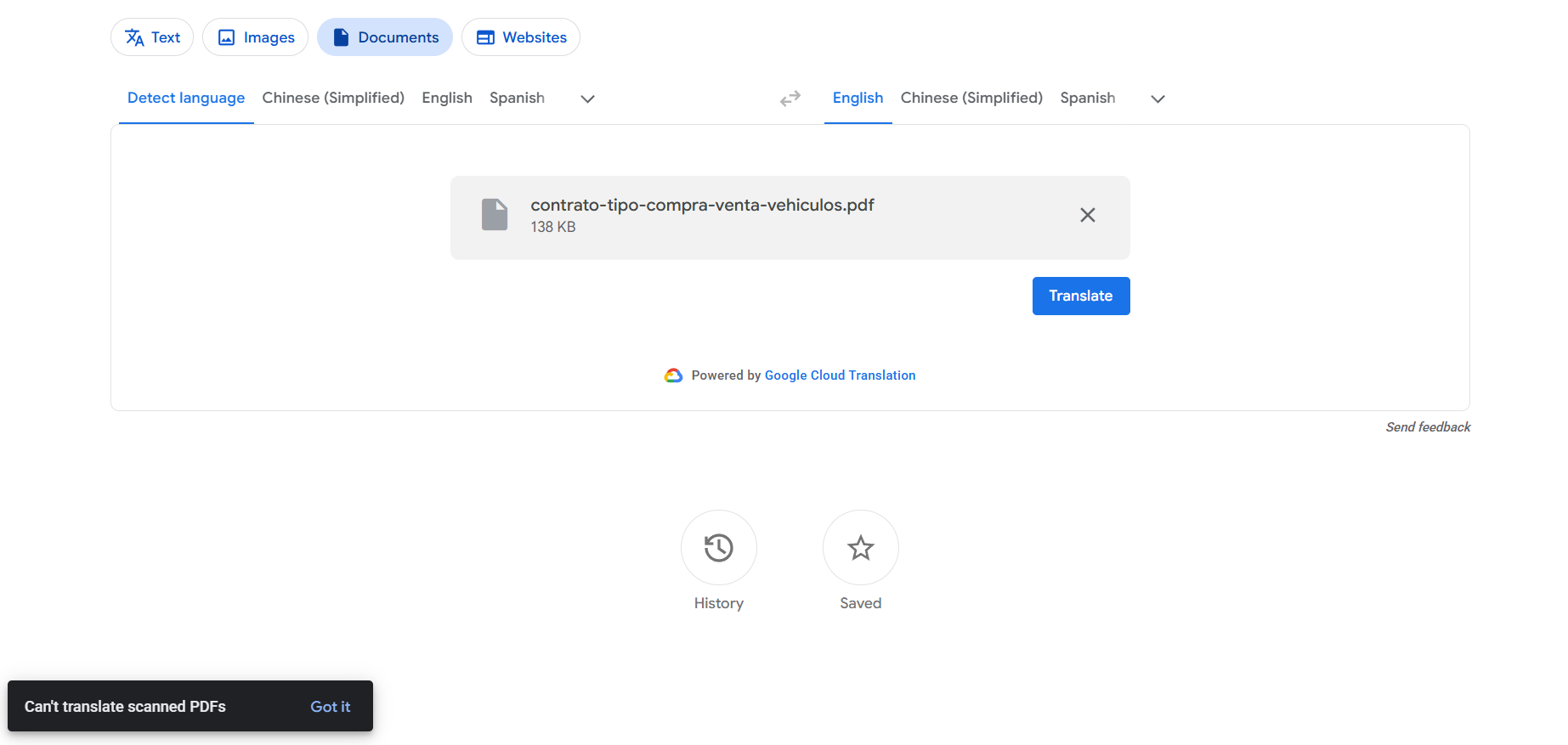
Notice the wording — "Can't translate scanned PDFs." Google itself recognizes the file is a scan and stops there, rather than even trying. The short answer to "can Google Translate a scanned PDF?" is therefore: not directly. To understand why — and what to do instead — it helps to know the one thing Google Translate doesn't do.
Why Google Translate can't read a scanned PDF
Google Translate's document feature only reads the text layer that's already inside a PDF. A normal, digitally-created PDF (exported from Word, generated by software) has that layer — the actual characters underneath what you see. Google grabs those characters, translates them, and hands back a translated file.
A scanned PDF has no text layer. It's a photograph of a page wrapped in a PDF — to software, every word is just pixels in an image. Turning that picture back into real characters requires OCR (optical character recognition), and Google Translate's document tab doesn't run OCR on your upload. With no text layer to read and no OCR to create one, it has nothing to translate, so it stops.
Open your PDF and try to select a sentence with your cursor. If you can highlight individual words, it has a text layer and Google Translate's document tab will probably handle it. If your selection grabs the whole page like a picture (or nothing), it's a scan — and that's why Google refuses it.
When Google Translate does work (and when it doesn't)
It's worth being precise here, because "Google can't translate PDFs" isn't quite true:
- Digital PDF with a real text layer → Google Translate's Documents tab works, though it often flattens tables and multi-column layouts into plain text.
- Scanned / image-only PDF → it refuses or returns nothing, because there's no text layer and it won't OCR the image.
- A single photo (not a PDF) → the Google Translate phone app can OCR a picture via the camera/image mode, but that's for snapshots of signs and short text, not a clean multi-page document with the formatting preserved.
So if you have a scanned contract, certificate, or transcript as a PDF, the Documents tab is a dead end — and the camera trick won't give you a tidy, layout-correct document back.
The manual workaround (and why it's painful)
You can force it to work in steps: run the scan through a separate OCR tool first (Adobe Acrobat's "Recognize Text", or a free OCR site) to create a searchable PDF or a Word file, then feed that into Google Translate. This does produce a translation — but you lose the layout the moment the text comes out, so you're left rebuilding tables, columns, stamps, and signature blocks by hand. For a single short page where you only need the gist, fine. For anything structured or multi-page — which is most official paperwork — it's slow and error-prone.
The one-step alternative: a translator that OCRs the scan for you
The missing piece in Google's flow is OCR, and that's exactly the first step a purpose-built scanned-PDF translator does for you. Reglyph treats image-only PDFs as the normal case: it OCRs the scan, erases the original text from the page, translates it, and re-typesets the translation back into the same positions — so tables, columns, figures, stamps, and numbers stay where they were. You upload the scan as-is (a PDF or even a phone photo) and download a finished, layout-correct PDF. No separate OCR step, no manual reformatting.
- 1Upload the scan as-is. An image-only scanned PDF or a phone photo of the page is fine. No text layer needed, no pre-conversion — exactly the file Google Translate rejects.
- 2It OCRs and translates. OCR extracts the source text, it's translated to your target language, and the original text is cleanly erased from the page.
- 3Download with the layout intact. You get a PDF where every table, figure, stamp, and number sits exactly where it was — only the words changed language. The first 3 pages are free to try.
The short version
Can Google Translate a scanned PDF? Not directly — its document tab only reads PDFs that already contain text, and it won't OCR a scan, so image-only documents get refused. You can OCR the file yourself first and then translate it, but you'll lose the formatting and have to rebuild it. If you want to skip all of that, a translator built for scanned PDFs does the OCR, translation, and re-typesetting in one pass and gives you back a clean, layout-correct document.
Frequently asked
Can Google Translate translate a scanned PDF?
Not directly. Google Translate's document tab only reads PDFs that already have a text layer, and it doesn't run OCR on uploads. A scanned PDF is an image with no text layer, so Google Translate refuses it or returns nothing. You need OCR first — or a tool that OCRs the scan automatically.
Why does Google Translate say it can't translate my PDF?
Because your PDF is most likely a scan — an image of a page with no underlying text. Google Translate has no characters to read and won't convert the image to text itself, so it stops with an unsupported or 'can't translate' message instead of producing a file.
How do I make Google Translate work on a scanned document?
Run the scan through an OCR tool first (Acrobat's 'Recognize Text' or a free OCR site) to create a PDF or Word file that contains real text, then upload that to Google Translate. The downside is you lose the original layout and have to rebuild tables and columns by hand.
Is there a way to translate a scanned PDF without losing the layout?
Yes — use a translator built for scans that OCRs the page, translates it, and re-typesets the result back into the original positions. Reglyph does this in one step: upload the scanned PDF as-is and download a translated PDF with tables, figures, and stamps still in place.